


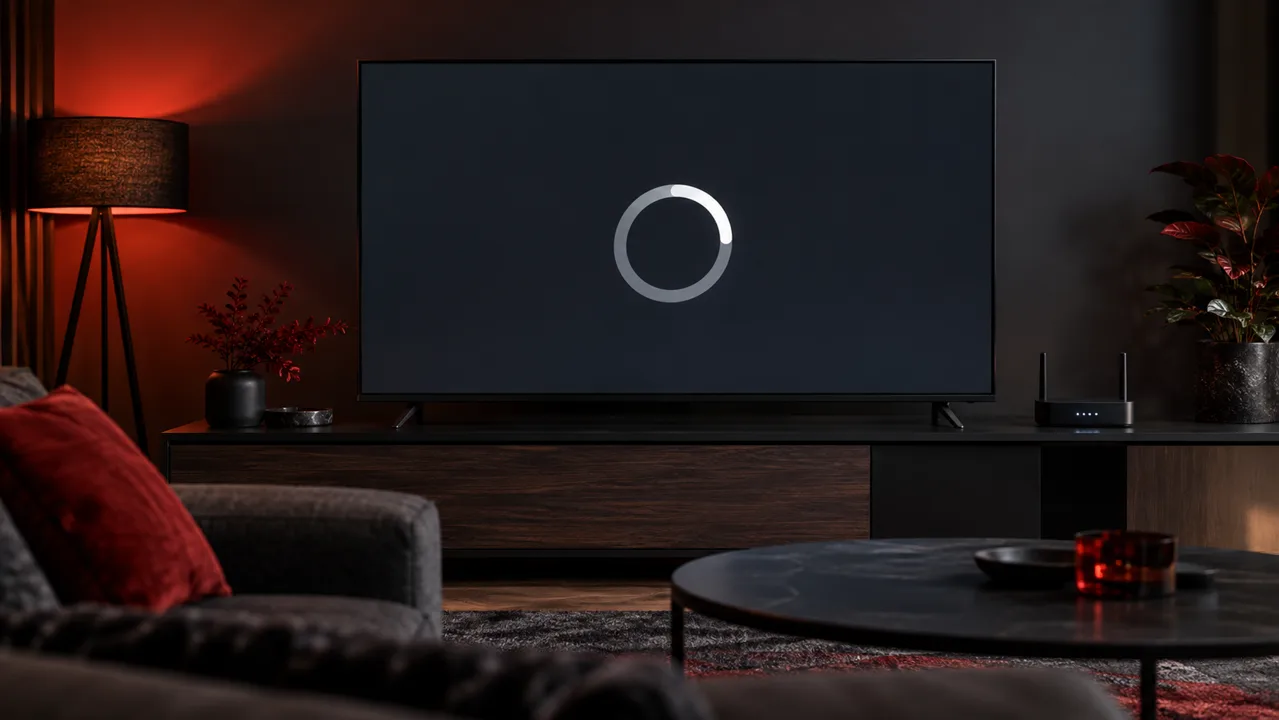
There are few things more frustrating than sitting down to watch television and seeing a loading circle appear every few minutes.
Maybe the picture freezes during a football match. Perhaps a movie plays perfectly for ten minutes before suddenly stopping. Or maybe everything works fine on your phone, but your television struggles to play the same stream.
If this sounds familiar, you’re not alone.
IPTV buffering is a common streaming problem, but the cause isn’t always what people expect. A fast internet connection doesn’t automatically guarantee smooth playback, and switching streaming providers won’t necessarily solve a problem caused by weak Wi-Fi or an overloaded device.
The good news? Many buffering problems can be diagnosed at home.
In this guide, we’ll explain why IPTV buffering happens, how to identify the source of the problem, and nine practical ways to improve playback without wasting money on unnecessary upgrades.
What Is IPTV Buffering?
Buffering happens when your streaming device cannot receive or process video data quickly enough to maintain continuous playback.
Most streaming applications temporarily store a small amount of video data before displaying it. This temporary storage is called a buffer.
When the incoming data arrives consistently, the video plays normally.
When the data arrives too slowly or irregularly, the buffer can run out. Playback then pauses while the application waits for additional information.
You might notice:
- A loading circle appearing repeatedly.
- Live television freezing for several seconds.
- Audio continuing while the picture stops.
- Channels taking unusually long to open.
- Video quality dropping unexpectedly.
- Streams disconnecting during busy periods.
These symptoms can have different causes, which is why identifying the pattern matters.
Why Does IPTV Keep Buffering?
IPTV playback depends on several components working together.
Your internet connection delivers the data, your router distributes it, your streaming application processes it, and your device decodes the video.
A problem at any stage can interrupt playback.
1. Unstable Internet Connections
Internet speed is important, but consistency matters just as much.
Imagine two connections.
Connection A delivers 50 Mbps consistently.
Connection B fluctuates between 100 Mbps and 3 Mbps.
Although Connection B reaches a higher maximum speed, Connection A may provide a smoother streaming experience.
Sudden drops in available bandwidth can empty the playback buffer.
2. Weak Wi-Fi Signals
Wi-Fi performance changes depending on distance, interference, and the physical environment.
Thick walls, neighboring networks, and poorly positioned routers can all affect signal quality.
A television positioned far from the router may experience buffering even when a phone near the router works perfectly.
3. Overloaded Streaming Devices
Streaming devices have limited processing power and memory.
Older televisions and inexpensive streaming boxes may struggle with demanding video formats or applications.
This can cause freezing even when the network connection is working correctly.
4. Streaming Server Problems
Sometimes the issue isn’t inside your home.
A streaming source may experience congestion, technical maintenance, or connectivity problems.
If several unrelated devices experience identical interruptions on the same stream, the source deserves investigation.
However, this alone doesn’t prove that the server is responsible.
5. Incorrect Player Settings
Streaming applications sometimes offer settings for hardware decoding, playback buffers, and video output.
Certain combinations work better on particular devices.
An unsuitable setting can cause playback problems that resemble network buffering.
9 Practical Ways to Fix IPTV Buffering
Fix 1: Test Your Internet Connection
Start with a basic speed test.
Use a reliable service such as Speedtest by Ookla to check your download speed.
For general reference, the following speeds can provide a starting point:
| Video Quality | Approximate Download Speed |
|---|---|
| Standard Definition | 3–5 Mbps |
| HD 720p | 5–8 Mbps |
| Full HD 1080p | 8–15 Mbps |
| 4K UHD | 25 Mbps or more |
These are approximate planning figures, not universal IPTV requirements. Actual bandwidth depends on the stream’s bitrate, codec, and other network conditions.
For households using multiple devices simultaneously, additional bandwidth may be necessary.
For example, if one person is streaming 4K content while another downloads a large game, the available bandwidth may become insufficient.
Practical tip: Run several tests throughout the day instead of relying on one result.
If buffering happens mainly during evening hours, compare your connection’s performance at different times.
Fix 2: Switch From Wi-Fi to Ethernet
A wired Ethernet connection is one of the simplest ways to eliminate Wi-Fi interference from your troubleshooting process.
Ethernet connects your streaming device directly to the router using a network cable.
Potential benefits include:
- More consistent network performance.
- Reduced wireless interference.
- Lower local-network latency.
- Fewer interruptions caused by weak signals.
Not every television or streaming device has an Ethernet port.
Some devices support compatible Ethernet adapters, although compatibility should be verified before purchasing one.
If Ethernet solves the buffering problem, your wireless network is likely contributing to the issue.
Fix 3: Restart Your Router and Streaming Device
It sounds basic, but restarting equipment can resolve temporary software and networking problems.
Try this sequence:
- Close your streaming application.
- Restart your television or streaming device.
- Restart your router.
- Wait until your internet connection is restored.
- Open the streaming application again.
This process can clear temporary device issues and reestablish network connections.
If the problem returns frequently, restarting may only be a temporary workaround. Further diagnosis will still be necessary.
Fix 4: Improve Your Wi-Fi Setup
If you cannot use Ethernet, focus on wireless stability.
Start by checking the router’s position.
Ideally, it should be placed in an open area rather than hidden inside a cabinet or behind a television.
Modern routers commonly support 2.4 GHz and 5 GHz Wi-Fi bands.
2.4 GHz Wi-Fi
Generally offers better range and wall penetration, but may experience more interference.
5 GHz Wi-Fi
Often provides higher throughput at shorter distances, although performance can decline through walls.
If your television is near the router, try the 5 GHz network.
If it’s farther away, compare both bands under real streaming conditions.
For larger homes, a properly configured mesh Wi-Fi system may improve coverage.
Fix 5: Clear Your IPTV Player Cache
Applications store temporary files to improve performance.
Over time, some cached information may become outdated or contribute to application problems.
On supported Android TV devices, you can usually find the relevant options under:
Settings → Apps → Select Your IPTV Player → Storage → Clear Cache
Menu names vary by device and operating system.
Be careful not to select Clear Data unless you understand the consequences.
Clearing application data can remove saved settings, playlists, and login information.
After clearing the cache, reopen the player and test playback.
Fix 6: Update Your Streaming Application
Outdated applications may contain bugs or compatibility problems.
Updates can include:
- Playback stability improvements.
- Video decoder fixes.
- Security patches.
- Compatibility updates for newer operating systems.
Check for updates through your device’s official application store or the software developer’s official website.
Avoid downloading modified or unofficial application packages from unknown sources.
These files may introduce security risks without improving streaming performance.
Fix 7: Check Hardware Decoding Settings
Many IPTV players offer different video decoding options.
Two common approaches are hardware decoding and software decoding.
Hardware decoding uses dedicated capabilities in the device’s chipset to process supported video formats.
Software decoding relies more heavily on general-purpose processing resources.
Hardware decoding is often more efficient on compatible devices, but compatibility varies.
If your player offers decoding settings, test the available options one at a time.
After changing a setting, restart playback and observe whether the freezing continues.
Don’t change multiple settings simultaneously, because doing so makes it harder to identify which adjustment helped.
Fix 8: Test Different Channels and Video Sources
One of the most useful troubleshooting techniques is comparing multiple streams.
Suppose one live channel buffers constantly while several others work normally.
That pattern suggests the problem may be specific to the affected stream.
Now imagine every channel freezes, including videos played through unrelated streaming applications.
In that situation, your device or internet connection becomes a stronger suspect.
Try the following comparisons:
| Observation | Possible Explanation |
|---|---|
| Only one channel buffers | Stream-specific problem |
| Every application buffers | Network or device issue |
| IPTV buffers but other apps work | Player, stream, or delivery-path issue |
| Only 4K content freezes | Bandwidth or decoding limitation |
| Buffering occurs mainly at night | Possible congestion |
| One device buffers while another works | Device or local connectivity issue |
These observations are diagnostic clues, not definitive proof.
Fix 9: Contact Your Streaming Provider With Useful Details
If you’ve tested your network and device without finding a solution, contact your provider’s technical support team.
Instead of simply reporting that IPTV isn’t working, provide useful information.
Include:
- Your device model.
- Your streaming application.
- Whether you’re using Wi-Fi or Ethernet.
- The approximate time buffering started.
- Whether the problem affects one channel or multiple channels.
- Any error messages displayed.
This information helps support teams investigate more efficiently.
For example, reporting that a particular stream freezes on two different devices while other streams work normally is more useful than saying that everything is slow.
How Much Internet Speed Do You Really Need for IPTV?
A common misunderstanding is that purchasing the fastest available internet package automatically solves streaming problems.
In reality, your connection needs sufficient sustained bandwidth for the content you’re watching.
Consider a household with three simultaneous streams:
- One HD stream using approximately 8 Mbps.
- Another HD stream using approximately 8 Mbps.
- One 4K stream using approximately 25 Mbps.
Together, these streams could require around 41 Mbps.
Additional bandwidth is useful for other household activities and normal network fluctuations.
However, even a 500 Mbps connection can experience playback interruptions when Wi-Fi is unstable or a particular streaming source has problems.
The important distinction is between advertised internet speed and reliable end-to-end streaming performance.
IPTV Buffering vs. IPTV Freezing: What’s the Difference?
People often use these terms interchangeably, but they can describe different problems.
Buffering
The player pauses because it is waiting for additional video data.
A loading indicator may appear.
Freezing
The picture stops updating.
This can happen because of missing data, decoding errors, application problems, or other technical issues.
Stuttering
The video continues playing but appears uneven or jerky.
Possible causes include inconsistent frame delivery, decoding limitations, or display refresh-rate mismatches.
Recognizing these differences can make troubleshooting more effective.
Does Changing DNS Fix IPTV Buffering?
Changing DNS settings is frequently recommended in online troubleshooting discussions.
However, DNS primarily helps devices translate domain names into network addresses.
Once a streaming connection is established, DNS usually isn’t responsible for continuously transferring the video data.
Changing DNS might help when a device has difficulty resolving a streaming server’s address.
It generally won’t fix weak Wi-Fi, insufficient bandwidth, or an overloaded video source.
Before changing DNS settings, investigate the more common causes described above.
Can a VPN Stop IPTV Buffering?
A VPN changes how your internet traffic travels between your device and its destination.
In some circumstances, routing changes may affect streaming performance.
However, a VPN also introduces additional processing and routing overhead.
Depending on the connection, this can reduce available speed or increase latency.
A VPN should not be treated as a universal buffering solution.
If you use one for privacy, choose a reputable provider and compare playback performance with and without the connection.
Also make sure your streaming activities comply with applicable laws and service terms.
Choosing a Streaming Setup That Works for Your Home
Troubleshooting becomes easier when you understand the different parts of a streaming setup.
A typical IPTV arrangement includes:
- An internet connection.
- A compatible streaming device.
- A playback application.
- A television or display.
- An authorized source of streaming content.
Each component contributes to the final experience.
Before purchasing new equipment or changing services, determine which component is actually causing the problem.
For readers researching IPTV service options, the ZORYFLIX official website provides information about its available plans and supported streaming setup.
When comparing any provider, consider device compatibility, support availability, transparent pricing, and whether the content offered is properly licensed for your location.
The cheapest option isn’t necessarily the most suitable, and the largest advertised channel count doesn’t automatically indicate better performance.
How to Prevent IPTV Buffering in the Future
Once your streaming setup works reliably, a few maintenance habits can help prevent recurring problems.
Keep your streaming applications updated.
Avoid installing unnecessary applications on devices with limited storage.
Check your Wi-Fi performance when moving equipment or changing router settings.
Use wired connections when practical.
Pay attention to whether problems affect individual streams or the entire device.
Most importantly, avoid making several troubleshooting changes at once.
Testing one variable at a time produces clearer results.
Frequently Asked Questions
Why does my IPTV buffer when my internet is fast?
Your connection may have sufficient maximum bandwidth but still experience instability, packet loss, Wi-Fi interference, or congestion. The streaming device or video source may also be responsible.
Is 50 Mbps enough for IPTV?
A stable 50 Mbps connection can be sufficient for many common streaming setups, depending on video bitrate and the number of simultaneous streams. Connection quality and available bandwidth matter more than the advertised speed alone.
Why does IPTV work on my phone but not my Smart TV?
Your phone and television may have different Wi-Fi capabilities, processors, application versions, and video decoding support. Compare their network connections and playback settings.
Can an old Smart TV cause IPTV freezing?
Yes. Older devices may struggle with demanding video codecs, high-resolution streams, or newer applications. However, age alone doesn’t establish the cause.
Does Ethernet improve IPTV performance?
Ethernet can improve connection stability by avoiding wireless interference. It won’t fix problems originating from a streaming server or incompatible playback software.
Should I increase the IPTV player buffer size?
A larger buffer may help absorb short network fluctuations when the application supports that setting. However, it can also increase playback delay and won’t solve prolonged bandwidth shortages.
Why does IPTV buffer more during the evening?
Evening buffering can be associated with higher network usage, congestion, or increased demand on streaming infrastructure. Comparing performance at different times can help identify patterns.
Will reinstalling my IPTV application fix buffering?
Reinstallation may help when application files or settings are corrupted. Save any necessary configuration details first, and try less disruptive troubleshooting steps before reinstalling.
Final Thoughts
IPTV buffering doesn’t always mean your internet package is too slow or your streaming provider is unreliable.
The real cause might be something as simple as Wi-Fi interference, an outdated application, or a device struggling to decode high-resolution video.
Start with the easiest tests.
Check your connection, compare different streams, restart your equipment, and try Ethernet if possible.
Then investigate application settings and device compatibility.
By identifying the actual cause instead of guessing, you can often improve streaming performance without spending money unnecessarily.
A reliable streaming experience starts with a stable connection, compatible equipment, and a trustworthy, authorized content source.
